Planner shows you every order that's moving toward delivery, so you can group them into delivery runs and send your team out with a clear plan. This guide walks through it in the order you'll use it, starting with how to turn it on.
1. Turn on Planner for your team
Planner is turned on for each person who will use it. You need admin access to do this, since admins control who can see each part of GordE. If you're not an admin, ask the admin on your team to follow these steps for you.
Go to Admin, then Users.
Click Edit next to the person's name.
Scroll down to Roles.
Check Delivery Planner.
Click Update User to save.
Planner will now show up on that person's GordE screen.
Admin > Users > Edit User > Role Settings
2. The Planner overview
The overview shows all of your orders that are in Foundation, Stencil, Pickup, Setting Ticket, or Delivery and Installation. These are the same orders you see on those production pages. Planner puts them all in one place, so you can see what's coming up without moving between screens.
Planner Overview screen
3. Filter and search your orders
Use the filters to narrow the list to what you need right now. You can filter by:
Status, to see only orders at a certain stage
Zone or branch, to see only one area
Foundation status, to see which orders are ready for delivery
You can also use the search box to find a specific order.
Use filters to view orders you want to see depending on status, delivery zone, or branch.
4. Export your orders
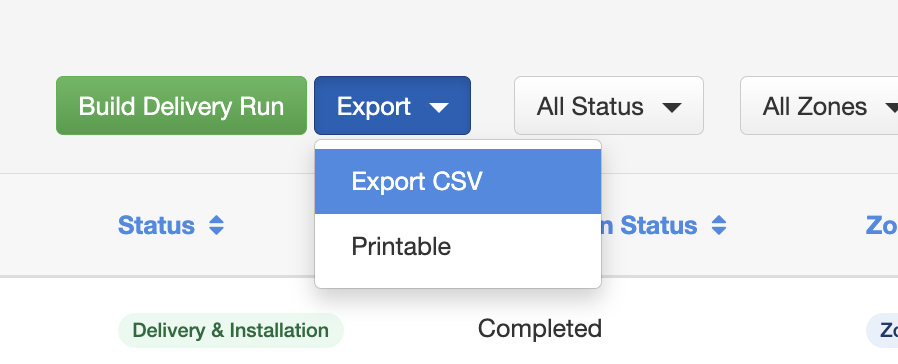
Open the Export menu and choose one of two options:
Printable handout, a copy of the list you can give your team
Export CSV, a spreadsheet file of your orders
If you only want certain orders, set your filters first. The export will include only the orders that match them.
You can export the orders as a csv file to open in Excel or Google Sheets or as a printout. Tip: Whatever orders are displayed in the table will be part of the export.
5. Build a delivery run
A delivery run is a group of orders that will go out together on a target date.
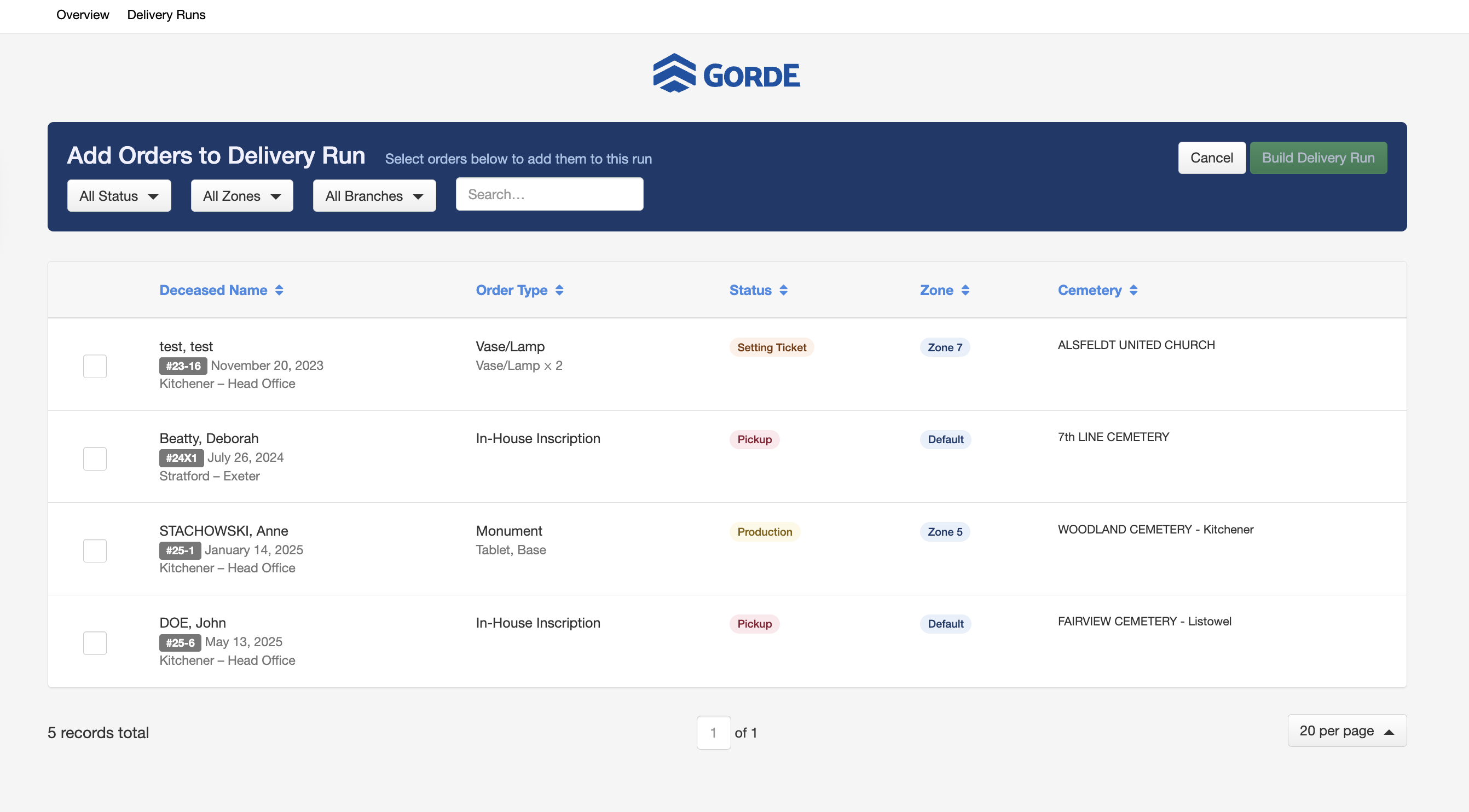
Click Build Delivery Run.
Select the orders you want to include. You can select as many as you need.
Click Build Delivery Run again to confirm your selection.
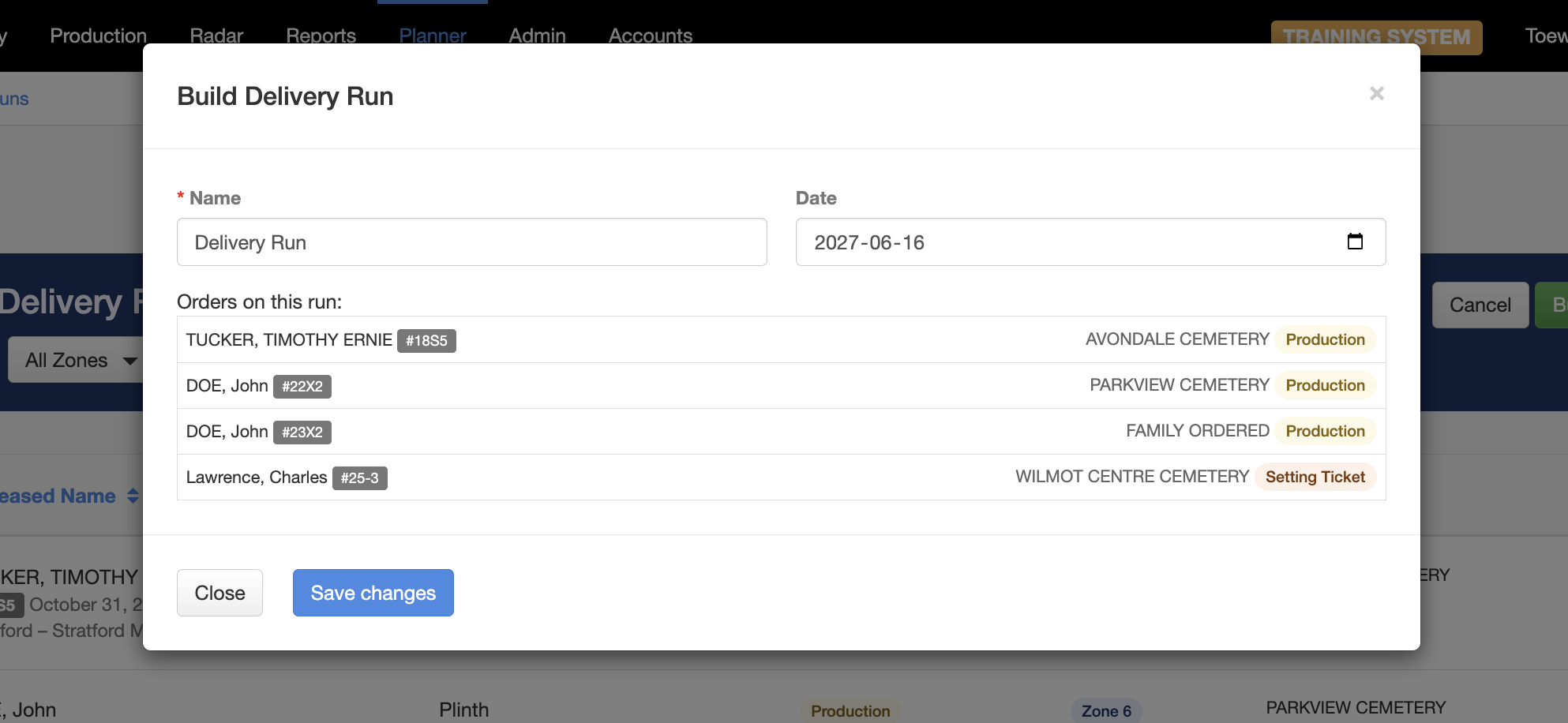
Enter a name for the delivery run.
Enter the target date for the delivery.
Click Save Changes.
Repeat these steps to build as many runs as you need. You can change the name later.
Click "Build Delivery Run" and select orders to be part of the run. Tip: Use the filters to help find the orders you want to be on the run.
After the orders are selected, name your delivery run and set a date.
6. See all your delivery runs
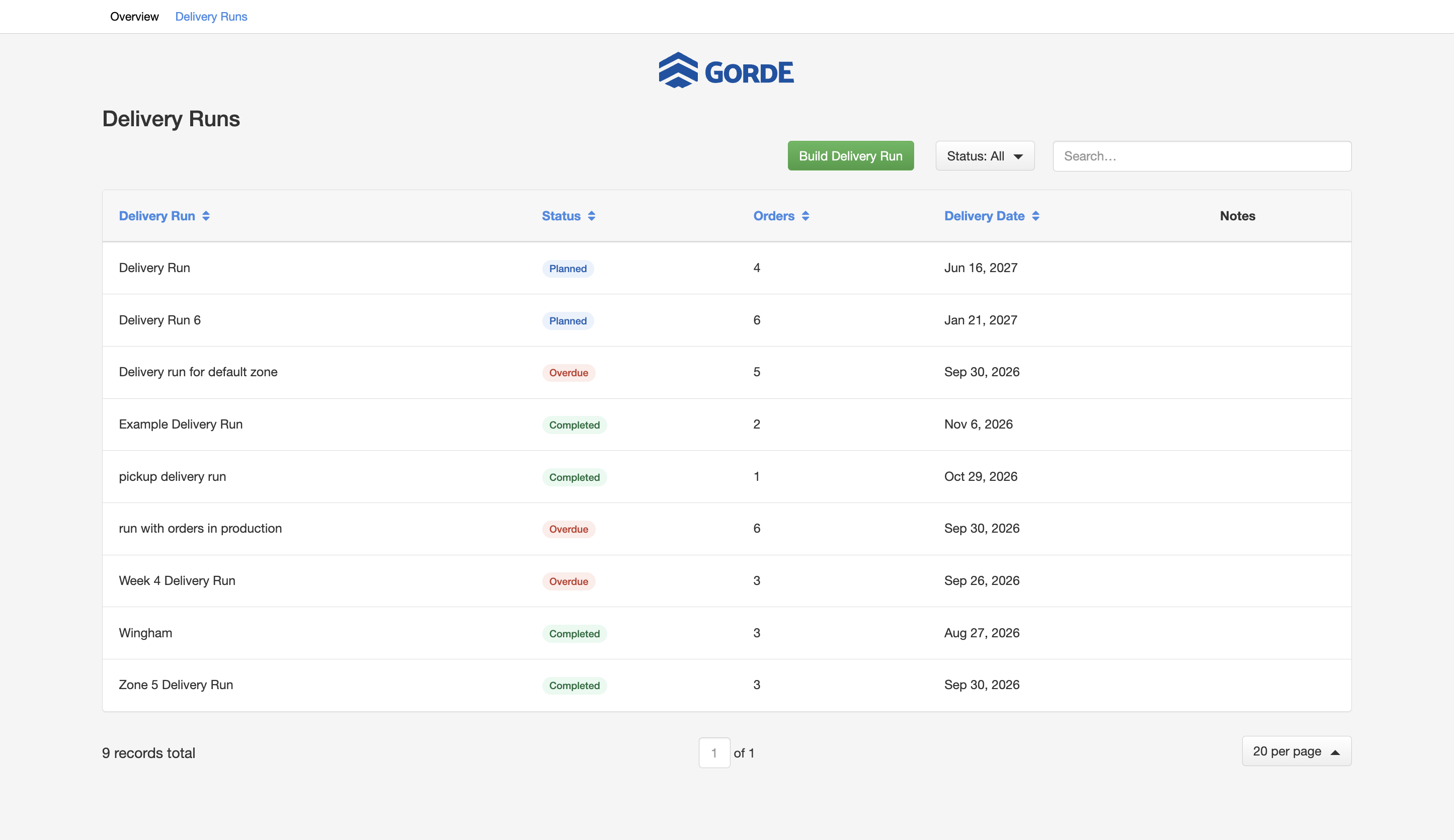
Open the Delivery Runs tab to see a table of every run. You can sort it by delivery date, status, number of orders, or run name.
Each run has one of these statuses:
Draft: The run has been created, but no date has been assigned yet.
Planned: The run has a date, but some orders don't have their foundation done yet, so they're not ready to go out.
Ready: The run has a date and every order's foundation is complete.
Overdue: The delivery date has passed and the run hasn't been completed.
Completed: The run has been marked as complete.
Delviery Run screen
7. Edit a delivery run
Click a run to open it. From here you can:
Reorder the orders. Drag and drop them into the order you'll deliver them, so you can load the truck in the right sequence.
Add or remove orders. Click Add Orders to bring more orders into the run, or remove ones that no longer belong.
Add notes. Click Edit next to Notes and type what your crew needs to know. Your notes appear on the printed form.
Change the run name.
Select and draft orders to reorder the orders on the delivery run.
Add more orders to the delivery run.
Add notes for the delivery run.
8. Print or export a delivery run
You can send a run to your crew in two ways:
Print the delivery run form. The form lists every item on each order, the cemetery address for each delivery, and your notes.
Export a CSV. Use this if you want to edit the data in a spreadsheet.
You can export the delivery run as a CSV file or a printed form to hand to your staff.
Example of a delivery run printout form.
9. Complete a delivery run
Once the deliveries are done, click Mark as Complete at the bottom right of the delivery run page. The run will show as Completed in your Delivery Runs table.
The button doesn't ask you to confirm, so only click it when the run is finished. If a completed run needs more work, you can reactivate it.
Completed order view.
10. Assistance
Questions or running into an issue with Planner? Reach out to us at support@gorde.ca and we’ll help.